Agentic Search: find patients before you ingest
Agentic Search queries a registered clinical document corpus in plain language and returns the patients whose notes answer the question, with the passage that proves each match. It runs before ingestion, so the pipeline downstream of it processes the confirmed subset rather than the whole corpus.
Most ingestion pipelines start with a list. Someone runs an EHR query, exports patients, assembles a file, and hands it to the platform. That list is built from structured fields, so a population defined by something written in a note, a biopsy finding, a functional status, a device complication, has to be approximated by codes and then narrowed by hand afterwards.
Agentic Search reverses the order. You describe the clinical question, the platform searches the document text, and you review the matches with their evidence before a single document is ingested. Reviewers then open a denser result set, compute runs on fewer documents, and the population you ingested is the population the question defined.
How Agentic Search works
Agentic Search runs against a registered corpus: any supported database or Elasticsearch cluster that holds clinical documents. You run a search, review the matched records with their evidence, preview the documents, then hand the confirmed population to the ingestion pipeline.
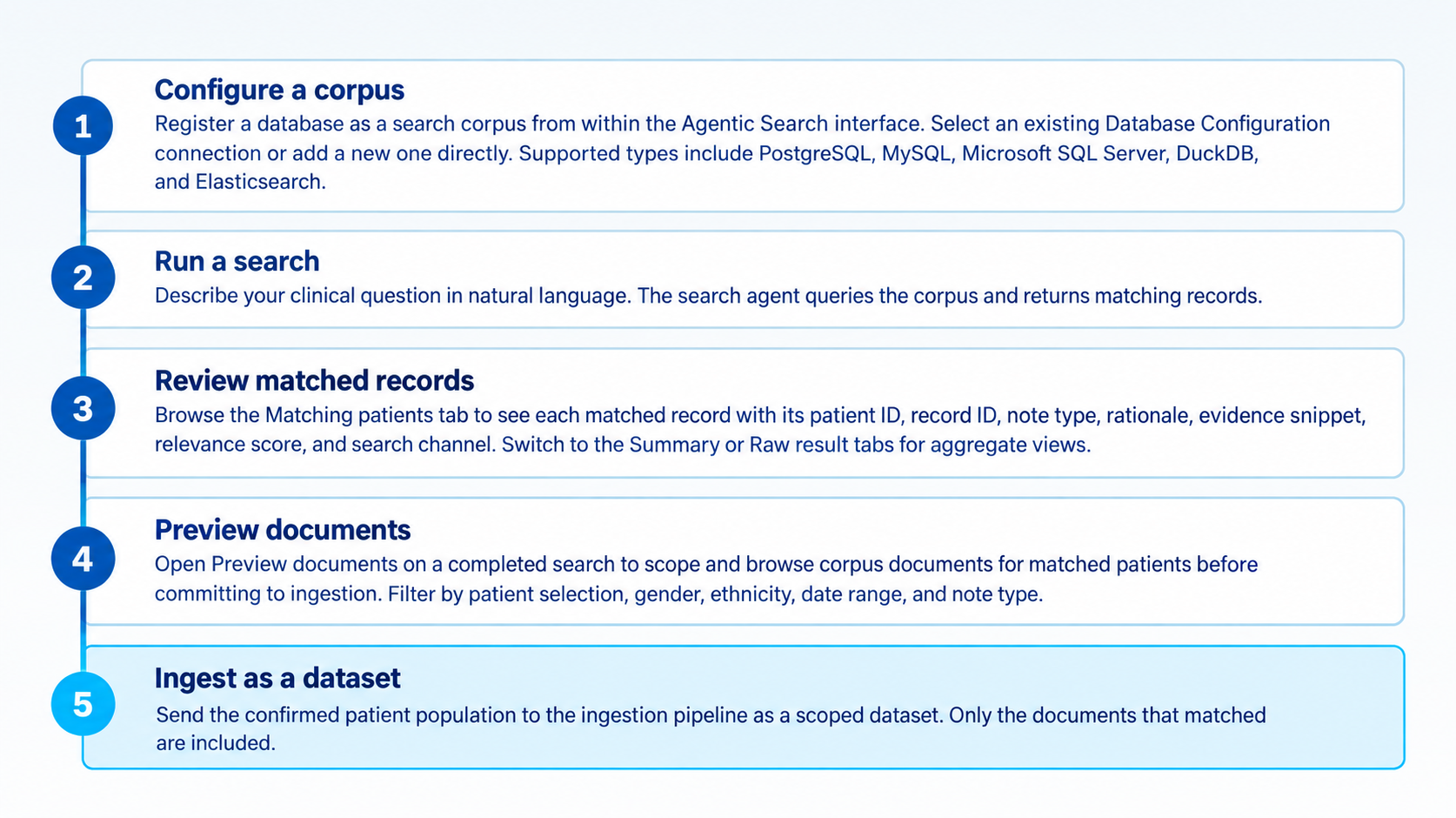
Agentic Search runs in five steps, from registering a corpus to ingesting only the documents that matched the clinical question.
Example: a rare finding in a 40,000-note corpus
A rare disease research team holds about 40,000 notes for a candidate cohort of 2,800 patients. Running extraction across all of it takes a weekend of compute and returns a review queue where most rows are empty, because the target finding appears in a few dozen notes.
The coordinator searches the corpus for patients with biopsy-confirmed cardiac amyloidosis and a documented conduction abnormality. The search returns 11 patients, each with the pathology sentence that matched. Ingestion and curation run against those 11 patients, and the reviewers work through a result set where nearly every document is relevant.
Registering a search corpus
Corpora are registered inside the Agentic Search interface. On the search page, open the corpus selector dropdown and choose Add database. A dialog offers two paths.
Reuse an existing connection
Select an existing connection lists any PostgreSQL or Elasticsearch connection already saved in your Database Configurations. This is the fastest path when the database is already registered elsewhere in the platform, and it keeps one set of credentials rather than a second copy.
Add a new database
Add a new database instead opens the Add Custom Database form. Give the corpus a name and an optional description, then choose a database type. Five types are supported:
| Database type | Typical corpus |
|---|---|
| PostgreSQL | A clinical data warehouse table holding note text and note metadata |
| MySQL | A departmental or legacy application database |
| Microsoft SQL Server | A hospital reporting database or an EHR extract mart |
| DuckDB (Embedded) | A local analytic file used for evaluation or a one-off corpus |
| Elasticsearch | A note index already built for full-text search |
The Connection tab collects host, port, database name, username, and password. The Advanced tab covers TLS and additional driver options. Once added, the corpus appears in the selector and is available for search immediately.
Reading search results
A completed search opens on three tabs.
Matching patients
Matching patients lists every record the search matched:
| Column | What it shows | Example |
|---|---|---|
| Patient | Patient identifier in the corpus | 10057731 |
| Record | Document identifier | 10057731-DS-8 |
| Source | Note type | discharge, radiology, nursing |
| Rationale | Plain-language explanation of why the record matched | "Discharge summary documents septic shock with norepinephrine support" |
| Evidence | The verbatim passage from the document that triggered the match | "…started on norepinephrine for septic shock, intubated on HD 2…" |
| Score | Relevance score for the match | 0.87 |
| Channels | The search method used | lexical |
The total match count appears above the table, for example 11 patients from this search. Pagination controls page through larger result sets.
Summary and Raw result
Summary gives an aggregate view across the matched population. Raw result gives the unformatted search engine output, which is what you open when a match looks wrong and you want to see what the engine actually returned.
Judging match quality
Rationale and Evidence are the two columns to read together. Rationale explains why the engine selected the record; Evidence is the sentence it selected the record on. A rationale that reads well against an evidence passage that does not mention the finding is a signal to tighten the query before previewing or ingesting anything.
Previewing documents from a completed search
Every completed search carries a Preview documents button. It opens a two-step wizard that queries the corpus for the matched population before any ingestion happens.
Step 1: scope the patients and documents
Patient scope. Include all matched patients or a selected subset. Optional filters narrow by gender and ethnicity.
Document scope. Choose what to fetch for each patient:
- Evidence documents only fetches the documents referenced in the search evidence spans. Use this when the question is answered by one note per patient, for example a pathology confirmation.
- All documents for patients fetches every note the corpus holds for the matched patients. Use this when the downstream work needs the longitudinal record, for example a treatment timeline.
- Custom range filters by date range and note type. Use this when the analysis has a window, for example discharge summaries from the 12 months after an index diagnosis.
Step 2: preview what would be ingested
The preview opens on a Patients / Documents view.
The Patients tab shows each matched patient with gender, age, ethnicity, and document count. Expand a row to see the documents attached to that patient.
The Documents tab lists every document in scope with its document ID, patient ID, note type, and date.
Preview reads the corpus in place
Nothing is copied to the platform during preview. Documents are fetched on demand from the registered corpus each time a preview is opened, so a preview of 4,000 documents creates no copy and no retention obligation. Ingestion is the step that brings documents into Patient Journey Intelligence.
When to use Agentic Search
Use Agentic Search when the population is defined by something written in a document and the documents are not in the platform yet. Use the cohort builder when the patients are already in the OMOP dataset and the definition runs on structured clinical facts such as diagnoses, medications, labs, or visits.
The two are often used in sequence: Agentic Search confirms which patients are worth ingesting, ingestion and extraction write their facts to OMOP, and the cohort builder refines the population from there.
Agentic Search works with PostgreSQL, MySQL, Microsoft SQL Server, DuckDB (Embedded), and Elasticsearch. All five types are available when adding a new corpus from inside Agentic Search. You can also reuse any PostgreSQL or Elasticsearch connection already saved in your Database Configurations.
On the Agentic Search page, open the corpus selector dropdown and click Add database. In the dialog, pick an existing connection from your Database Configurations, or click "Add a new database instead" to enter connection details directly. Give the corpus a name, choose the database type, and enter the host, port, database name, and credentials. TLS and driver options are on the Advanced tab.
The Matching patients tab shows one row per matched document record. Each row carries the patient ID, the record ID, the note type, a plain-language rationale for the match, the verbatim evidence passage, a relevance score, and the search channel, for example lexical. The Summary tab gives an aggregate view and the Raw result tab gives the unformatted engine output.
No. Preview shows the matched patients with their demographics and the documents in scope, and it fetches those documents on demand from the registered corpus each time the preview is opened. Document content is never stored by the preview step. Ingestion is the step that brings documents into Patient Journey Intelligence.
The patient scope step includes all matched patients or a selection, with optional gender and ethnicity filters. The document scope step offers evidence documents only, all documents for each patient, or a custom range defined by date and note type.
Use Agentic Search when the source documents are in an external corpus that has not been ingested yet, and the population is defined by something written in the text. Use the cohort builder when the patients are already in the OMOP dataset and the definition runs on structured facts such as diagnoses, medications, labs, or visits. Many teams use both: search to decide what to ingest, then the cohort builder to refine what was ingested.
Yes. Searches can be marked as favorites and shared, so a query that produced a usable population can be handed to a colleague or run again later instead of being rebuilt from memory.