Ingest Epic EHR patients and clinical notes over FHIR R4
The Epic connector in Patient Journey Intelligence reads patient records and clinical notes from an Epic EHR through Epic's FHIR R4 API. It uses backend OAuth 2.0: the platform authenticates as a registered system with its own key pair, so no clinician user name or password is involved. This page takes you from creating the app in Epic to a finished ingestion. It ends when the job has downloaded the selected patients and their notes into the ingestion pipeline.
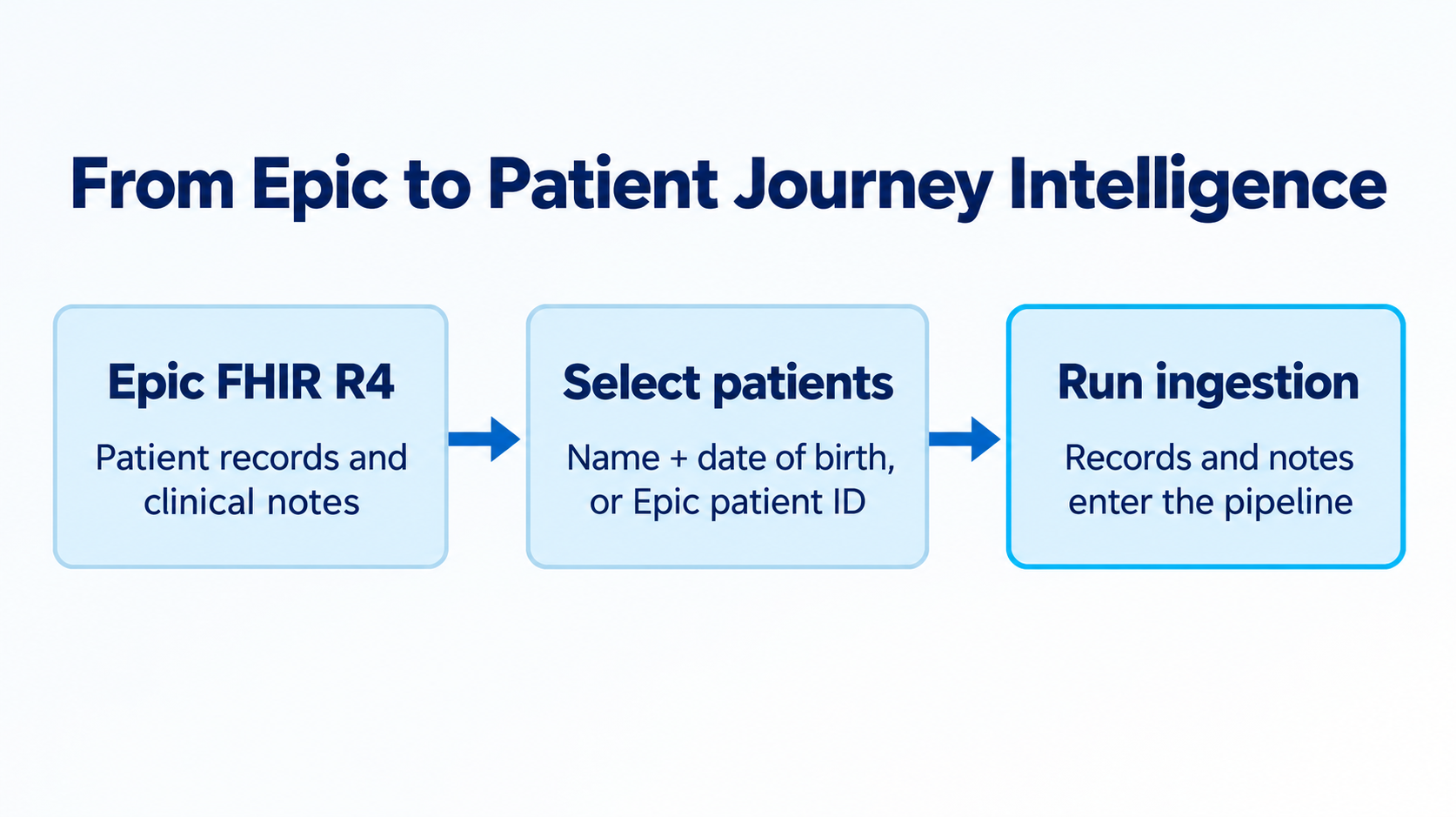
Epic FHIR R4 supplies patient records and clinical notes. Select patients by name and date of birth or Epic patient ID, then run ingestion to bring their records and notes into the pipeline.
Before the first ingestion can run, Epic needs to trust the platform and the platform needs to know where to find Epic. Steps 1 to 3 cover the Epic side: you create a key pair, register the platform as a backend app, and note the values Epic gives back. Steps 4 and 5 cover the Patient Journey Intelligence side: you store the private key and create a data source that ties everything together. You do these five steps once per Epic environment. Step 6 is the part you repeat whenever you need to bring in more patients.
Setup in six steps
Create an RSA key pair
Generate a 2048-bit RSA key and certificate with OpenSSL for RS384 signing.
Register a Backend Systems app in Epic
Add the Patient, DocumentReference, DiagnosticReport, and Binary APIs, upload the certificate, copy the client ID.
Save the private key as an Epic credential
Store the key encrypted under Settings → Cloud Credentials.
Create and test the Epic data source
Enter the connection values, pick the credential, run Test Connection.
Select patients and run an ingestion
Search by name and date of birth or by Epic patient ID, then start the job.
New to backend OAuth? Read how Epic backend authentication works first. If a step fails, see Troubleshooting or the FAQ.
Who this is for
Integration engineers and platform administrators who hold Epic on FHIR access and the credentials for it. Also the people waiting on the data: cancer registrars working a new case, quality analysts reviewing care gaps, and research coordinators prescreening a referred patient, who need a specific patient's Epic record and notes in Patient Journey Intelligence.
Why it matters
Much of what a clinical team needs to know about a patient is written in the notes, and the notes are in Epic. The problem list may record a breast cancer diagnosis as an ICD-10 code. The tumor size, receptor status, and margins are in the pathology report. The reason a statin was stopped is in a progress note.
Without a direct connection, that text reaches an analytics platform as an export: someone runs a report, saves the files, moves them to storage such as Amazon S3, and repeats the process every time a new case comes up. The Epic connector removes those handoffs. You search for the patient by name and date of birth or by Epic patient ID, and the ingestion job downloads that patient's record and notes straight from Epic's FHIR API.
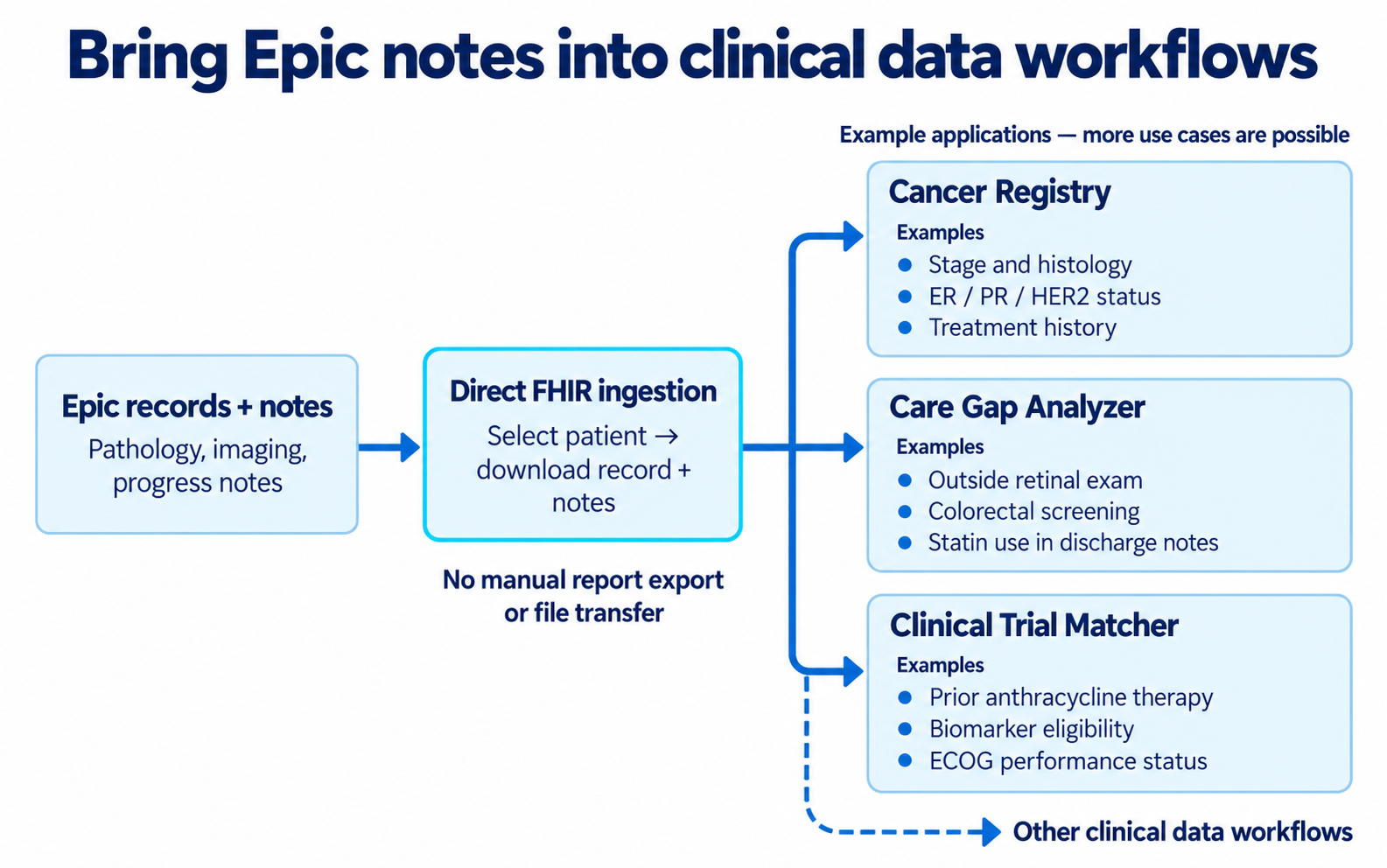
Direct Epic FHIR ingestion supports applications such as Cancer Registry, Care Gap Analyzer, and Clinical Trial Matcher, along with other clinical data workflows. These examples are not exhaustive.
Cancer registry abstraction
A cancer registry team ingests the pathology and imaging reports (FHIR DiagnosticReport) and oncology consult notes (DocumentReference) for the patients in its registry cohort. The Cancer Registry then abstracts many cases at once. It extracts NAACCR data items such as AJCC stage, histology and grade, ER/PR/HER2 status, and first course of treatment, with the source evidence attached to each value. Certified tumor registrars validate the exceptions instead of reading every chart, and the approved cases export as NAACCR XML ready for state registry, SEER, or CoC submission.
Care gap review
A quality team checks its diabetic population for an annual retinal exam. The exam is often done at an outside clinic and recorded only in a note, so it never becomes a structured order. The Care Gap Analyzer compares the guideline against the full record, including the notes ingested from Epic. It credits that exam as met instead of flagging a false open gap, and gives each finding a status and supporting evidence that a reviewer confirms before any outreach.
Clinical trial prescreening
A research coordinator screens referred patients for a breast cancer trial. The Clinical Trial Matcher parses the protocol from ClinicalTrials.gov or pasted text into inclusion and exclusion criteria. Facts such as prior anthracycline therapy, biomarker results, and ECOG performance status often appear only in oncology notes. After ingestion, the matcher evaluates those notes alongside structured data, reports a matched patient count for each criterion, and saves the reviewed matches as a reusable cohort.
What you gain
A live connection to Epic that pulls exactly the patients you select, with their notes and the clinical resources you enabled, and then hands them to the same pipeline every other source uses, described in Ingestion Jobs. The private key stays encrypted in the platform, each job runs on an access token of about one hour, and patient names stay out of job logs.
For a whole FHIR bundle you already hold as a file, use Ingest FHIR R4 into OMOP CDM, with or without NLP instead.
How Epic backend authentication works
Epic's backend services flow replaces a user login with a signed request. Each step below happens without anyone signing in.
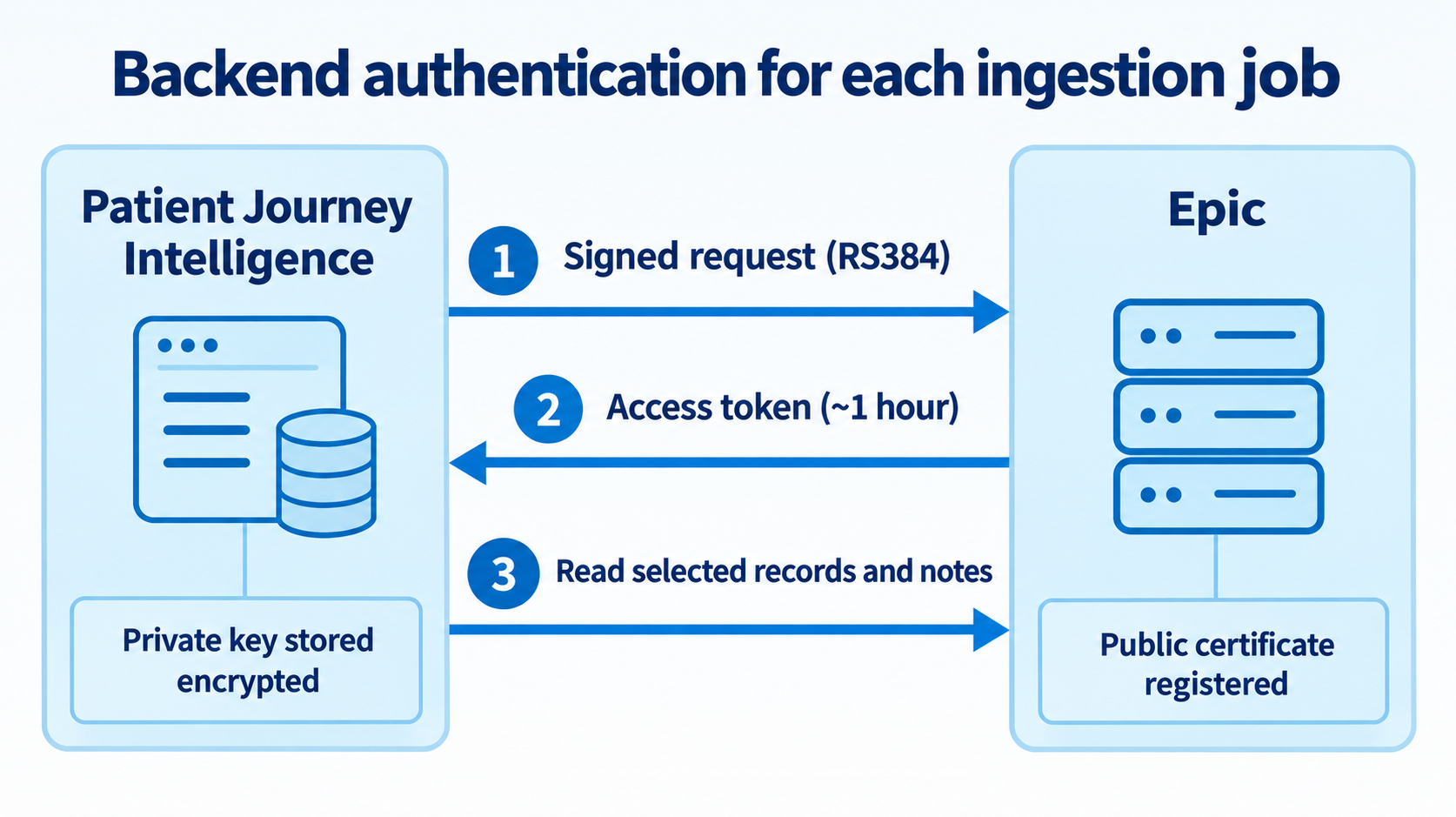
Patient Journey Intelligence sends an RS384 signed request to Epic. Epic returns an access token lasting about one hour. The platform then requests selected records and notes. The private key stays encrypted in the platform; Epic holds the public certificate.
- You create a key pair. Epic receives the public key, as a certificate uploaded to your app. Patient Journey Intelligence keeps the private key.
- The platform signs a request for each job. When an ingestion job starts, the platform signs a short message with the private key and sends it to Epic's token URL.
- Epic returns a one-hour access token. Epic checks the signature against the public key and returns an access token that lasts about one hour. The platform uses it to read patients and notes.
The private key is stored encrypted as an Epic credential. It is never saved on the data source and is not shown again after you save it.
Before you start
Epic on FHIR account
Sign up at fhir.epic.com. This is where you register the Backend Systems app and get its client ID.
OpenSSL or similar
Any tool that creates an RSA key pair and a certificate. The commands in Step 1 use OpenSSL.
Credential permission
Permission to create credentials under Settings → Cloud Credentials in Patient Journey Intelligence.
Step 1: create an RSA key pair
Epic signs with RS384, which needs an RSA key. Create a 2048-bit key and a certificate that holds the public part:
openssl genrsa -out epic_private_key.pem 2048
openssl req -new -x509 -key epic_private_key.pem -out epic_public_cert.pem -days 365 -subj "/CN=patient-journey"
openssl base64 -in epic_public_cert.pem -A > epic_public_cert.b64
Keep the private key secret
Anyone with epic_private_key.pem can sign in to Epic as your app and read the patient data it is allowed to read. Never email it or commit it to source control.
Step 2: register a Backend Systems app in Epic
- Sign in to
fhir.epic.com, open Build Apps, then select Create. - Enter an application name.
- Set Application Audience to Backend Systems.
- Set the SMART on FHIR Version to R4.
- Under Incoming APIs, select the four APIs below. Without them, Epic answers with a 403 error.
| API | Why the platform needs it | Clinical example |
|---|---|---|
| Patient (Read and Search) | Find patients and read their details | Match "Camila Lopez, born 1987-09-12" to one Epic patient |
| DocumentReference (Search) | Find clinical notes | Progress notes, discharge summaries, consult notes |
| DiagnosticReport (Search) | Find reports with narrative text | Pathology reports, radiology impressions |
| Binary (Read) | Download the note files | The note text behind each DocumentReference |
- Add the other clinical APIs you want in the ingestion, such as Condition, Encounter, MedicationRequest, Observation, and Procedure.
- Under Non-Production JWK Set URL or Public Key, upload the public certificate. Paste the contents of
epic_public_cert.b64into the base64 field. - Save the app. Epic shows the Non-Production Client ID. Copy it.
Allow up to an hour for activation
Epic can take up to an hour to activate a new or changed app. If sign-in fails right after you save, wait and try again.
Step 3: collect the four Epic connection values
| Value | Sandbox example | Where to find it |
|---|---|---|
| FHIR base URL | https://fhir.epic.com/interconnect-fhir-oauth/api/FHIR/R4 | Epic documentation for your environment |
| Token URL | https://fhir.epic.com/interconnect-fhir-oauth/oauth2/token | Epic documentation for your environment |
| Client ID | A UUID | The app page in Epic |
| Key ID | Any label, such as epic-sandbox-key-1 | You choose it. It must match the key label you gave Epic. |
For a hospital's own Epic system, the hospital gives you the base URL and token URL. Use the token URL exactly as registered, with no changes.
Step 4: save the private key as an Epic credential
- In Patient Journey Intelligence, go to Settings → Cloud Credentials.
- Select Add Credential and choose the provider Epic.
- Enter a name, such as
Epic sandbox key. - Paste the full contents of
epic_private_key.pem, including theBEGINandENDlines. - Save.
Only you can use a credential you created. To rotate the key, create a new credential, point the source at it, and delete the old one.
Step 5: create and test the Epic data source
- Go to Data Sources and select Add Source.
- Choose Epic.
- Enter the FHIR base URL, token URL, client ID, and key ID from Step 3.
- Select the Epic credential you saved in Step 4.
- Select Test Connection. A success message means Epic accepted the key. If you get an error, see Troubleshooting.
- Save the source.
You do not enter patients on the source. You choose them when you set up the ingestion. For how sources are managed after creation, see Data Sources.
Step 6: select patients and run an ingestion
- Go to Ingestion Jobs and start a new ingestion.
- Choose the Epic source.
- In the Patient Selection section, select Select Patients.
- Search for patients. Epic does not list every patient, so a search is required:
- By name and date of birth, for example
Lopez, Camila 1987-09-12orCamila Lopez 1987-09-12 - By Epic patient ID
- By name and date of birth, for example
- Tick each patient to ingest. Your picks are kept between searches. Select Use selected patients when done.
- Continue through the wizard, choose when the job runs, and start it.
The job downloads each patient's record and notes, then follows the normal pipeline. Follow progress on the Ingestion tab. For run timing and the review step, see Ingestion Jobs.
Sandbox test patients
The Epic sandbox has fixed test patients only. Camila Lopez (born 1987-09-12) and Jason Argonaut (born 1985-08-01) are good first tests.
Troubleshooting Epic connection and search errors
| Problem | Likely cause and fix |
|---|---|
Test Connection fails with invalid_client | The client ID, key ID, or token URL is wrong, or the public certificate in Epic does not match the private key. Upload the certificate again. Wait for Epic to activate the change. |
| Test Connection works but the patient search says Epic denied access | The Epic app is missing the Patient search API. Add it in Epic and wait for activation. |
| Opening a patient says Epic denied access to that patient | The app is missing Patient Read. Add it in Epic. |
| Search finds nothing | Search by name together with a date of birth, or by patient ID. Epic does not accept name-only searches. |
| The search warns that only the first matches are shown | Add a date of birth or a fuller name to narrow the search. |
| The job reports that Epic refused a resource type | Add that API to the Epic app. The job continues with the records it can read. |
| The job fails at start with a credential error | The Epic credential was deleted, or the source points at a credential you do not own. Select a valid credential on the source. |
Edge cases and limitations
- Patients are selected by search during ingestion setup. Epic does not list every patient and does not accept name-only searches.
- A broad search shows only the first matches. Add a date of birth or a fuller name to narrow it.
- The Epic sandbox has fixed test patients only. Use your hospital's base URL and token URL for production data.
- A new or changed Epic app can take up to an hour to activate.
- If Epic refuses a resource type, the job continues with the records it can read, so the ingested record is incomplete until the missing API is added and the job runs again.
- An Epic credential can be used only by the person who created it.
How the key and patient data are protected
- The private key is encrypted at rest and is read only when a job runs. The job container receives a short-lived token and never the key itself.
- Patient names are not written to job logs. Selections use Epic patient IDs.
- Rotate the key pair before the certificate expires, and whenever someone who had the key leaves the team. The certificate from Step 1 is valid for 365 days.
FAQ
Through Epic's FHIR R4 API with backend OAuth 2.0. You register a Backend Systems app on Epic on FHIR and upload a public certificate. Patient Journey Intelligence signs a short message with the matching private key for each job, sends it to Epic's token URL, and receives an access token that lasts about one hour.
No. The platform authenticates as a backend system with its own key pair. No user name or password is entered or stored.
Four are required: Patient (Read and Search), DocumentReference (Search), DiagnosticReport (Search), and Binary (Read). Without them, Epic returns a 403 error. Add other clinical APIs such as Condition, Encounter, MedicationRequest, Observation, and Procedure if you want those resources in the ingestion.
Epic signs with RS384, which needs an RSA key. Step 1 creates a 2048-bit RSA private key with OpenSSL, a certificate holding the public key, and a base64 copy of the certificate to paste into the Epic app.
You select patients when you set up the ingestion, not on the data source. Search by name together with date of birth, such as Lopez, Camila 1987-09-12, or by Epic patient ID. Tick each patient; selections are kept between searches. Epic does not accept name-only searches and does not list every patient.
As an encrypted Epic credential under Settings → Cloud Credentials. It is never saved on the data source, is not shown again after you save it, and is read only when a job runs. The job container receives a short-lived token and never the key itself. Only the person who created a credential can use it.
Epic can take up to an hour to activate a new or changed app. If Test Connection fails with invalid_client and the client ID, key ID, and token URL are correct, wait for activation and try again. If it still fails, upload the public certificate again, since it may not match the private key.
Yes. Use the Epic on FHIR sandbox base URL and token URL listed in Step 3. The sandbox has fixed test patients only; Camila Lopez (born 1987-09-12) and Jason Argonaut (born 1985-08-01) are good first tests. For a hospital's own Epic system, the hospital provides the base URL and token URL.
Use the Epic connector when you need specific patients' records and notes pulled live from an Epic system. Use the FHIR bundle upload in Ingest FHIR R4 into OMOP CDM when you already hold the FHIR content as a file, and Ingest external FHIR documents without patient linkage when the files carry no reliable patient identifier.
The job reports which resource type Epic refused and continues with the records it can read. Add the missing API to the Epic app, wait for activation, and run the ingestion again.
Related pages
- Data Sources: register, edit, and monitor every connector, including Epic
- Ingestion Jobs: run timing, monitoring, and the review step after an Epic job
- Ingest FHIR R4 into OMOP CDM, with or without NLP: ingest a FHIR bundle you hold as a file
- Ingest external FHIR documents without patient linkage: FHIR files with no reliable patient identifier
- Cancer Registry, Care Gap Analyzer, and Clinical Trial Matcher: where ingested Epic records and notes are used